Blender add-on · Bundles
Advanced Modeling Bundle
Blender's inset, bevel and extrude, held open for editing: every corner becomes a handle you can push to its own depth, widen or give more vertices before you confirm — and none of them can turn inside out.
These add-ons don't replace Blender's own Inset, Bevel and Extrude.
They're for the shapes where you want more control: rounded corners that keep their shape, and every corner adjustable on its own. Building corners like that is complex, so they can't handle every mesh, and on some tricky shapes they won't give you the result you want. When that happens, or when a plain inset, bevel or extrude is all you need, use Blender's own. Each add-on's menu has Blender's tools right next to the advanced ones, and they're still on their usual keys: I, Ctrl + B, E and Alt + E.
3 separate add-ons. Install only the ones you use — each is standalone, and they share one sidebar tab and one set of keys.
Interactive · runs in your browser
Try it here.
This is only a small demo of part of the add-on, to show what it generally does. It is not the whole add-on: in Blender it does much more, on any mesh.
This is Advanced Inset running in the page, on a real mesh in a 3D viewport. Press Advanced Inset, move toward the middle, click, then pick corners and sides and change them with the wheel, or copy one corner’s settings onto others. Press Blender Inset to do the same with Blender’s own: its rounded corners shrink, collapse and turn inside out where these keep their shape. Confirm, then press E to extrude the result.
- WheelZoom
- Drag or middle mouseOrbit
- HEvery shortcut
Pick an inset below. Drag to look around; the axes top right turn the view.
A taste of the editor, not the whole add-on: in Blender it works on any face or region of faces, on any mesh.
Included in your bundle
Advanced Inset
An inset whose rounded corners never collapse, every corner a handle you edit before you confirm.
Advanced Bevel
Blender's own bevel, then every corner it runs around is yours to shape, with the profile live.
Advanced Extrude
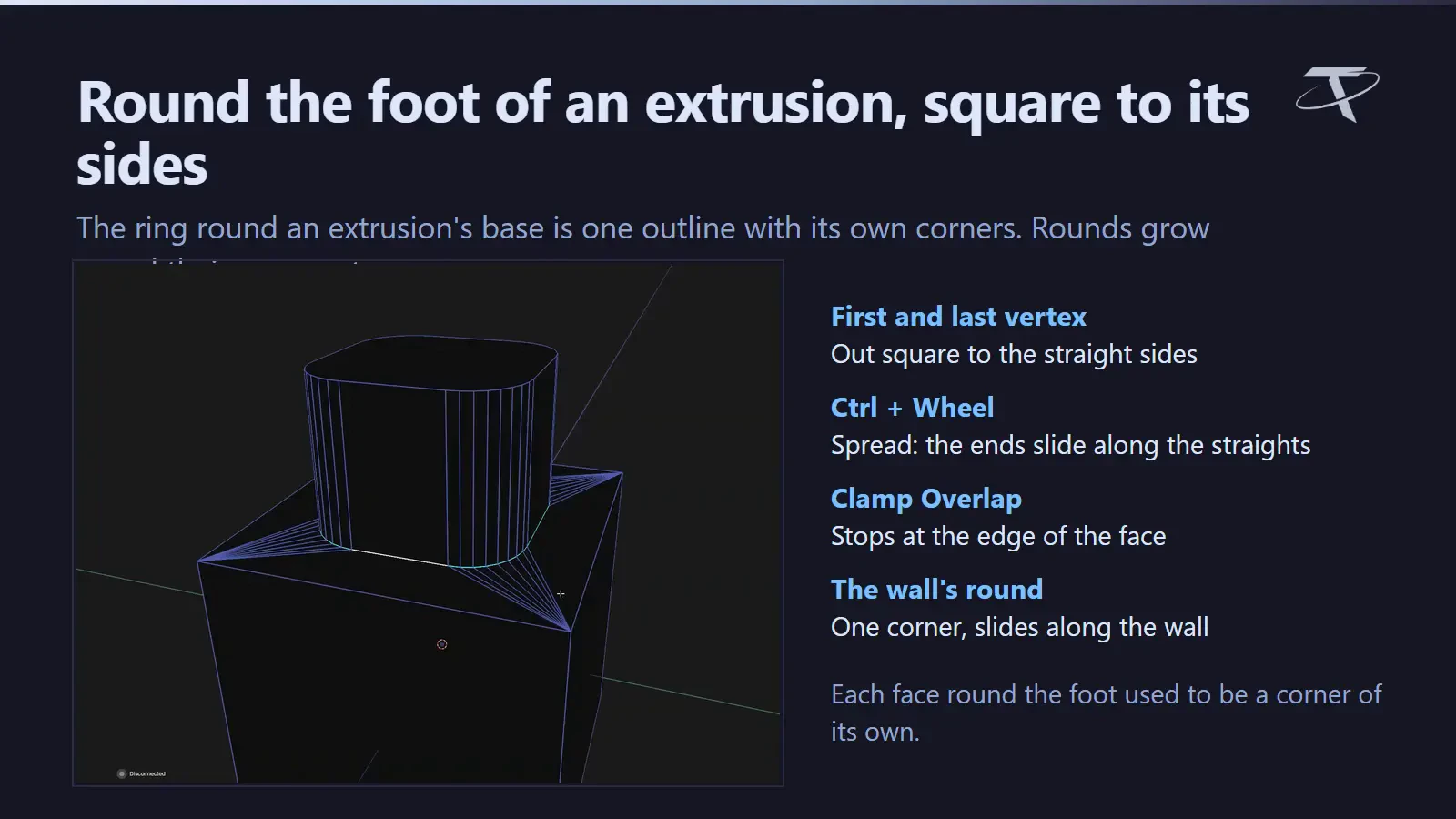
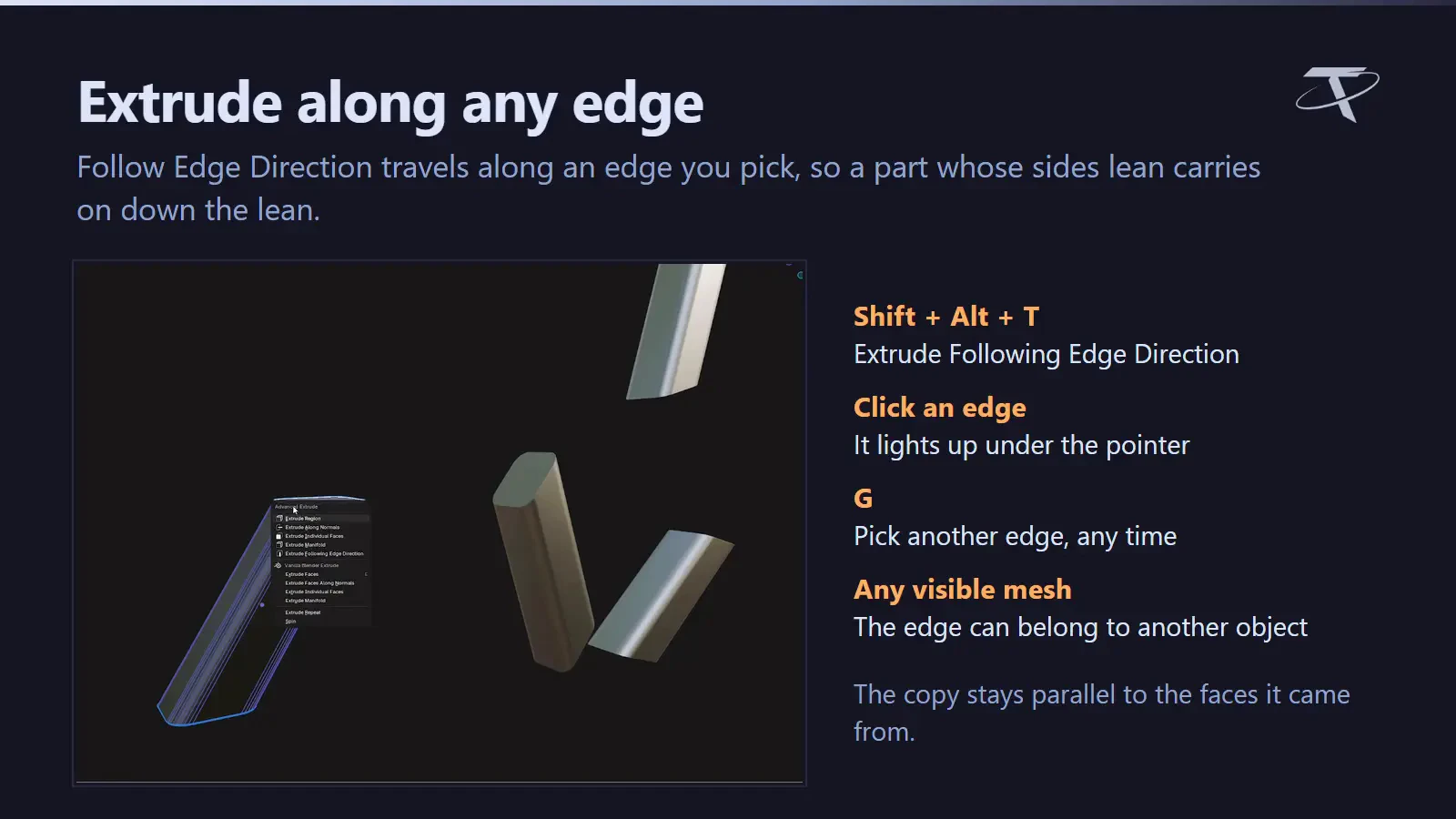
All four of Blender's extrudes, held open: every corner its own depth, width and vertex count.
New in this release
Advanced Bevel 1.1.0, Advanced Extrude 1.1.0 and Advanced Inset 1.0.2. Free for everyone who already owns the bundle.
One idea. Three tools.
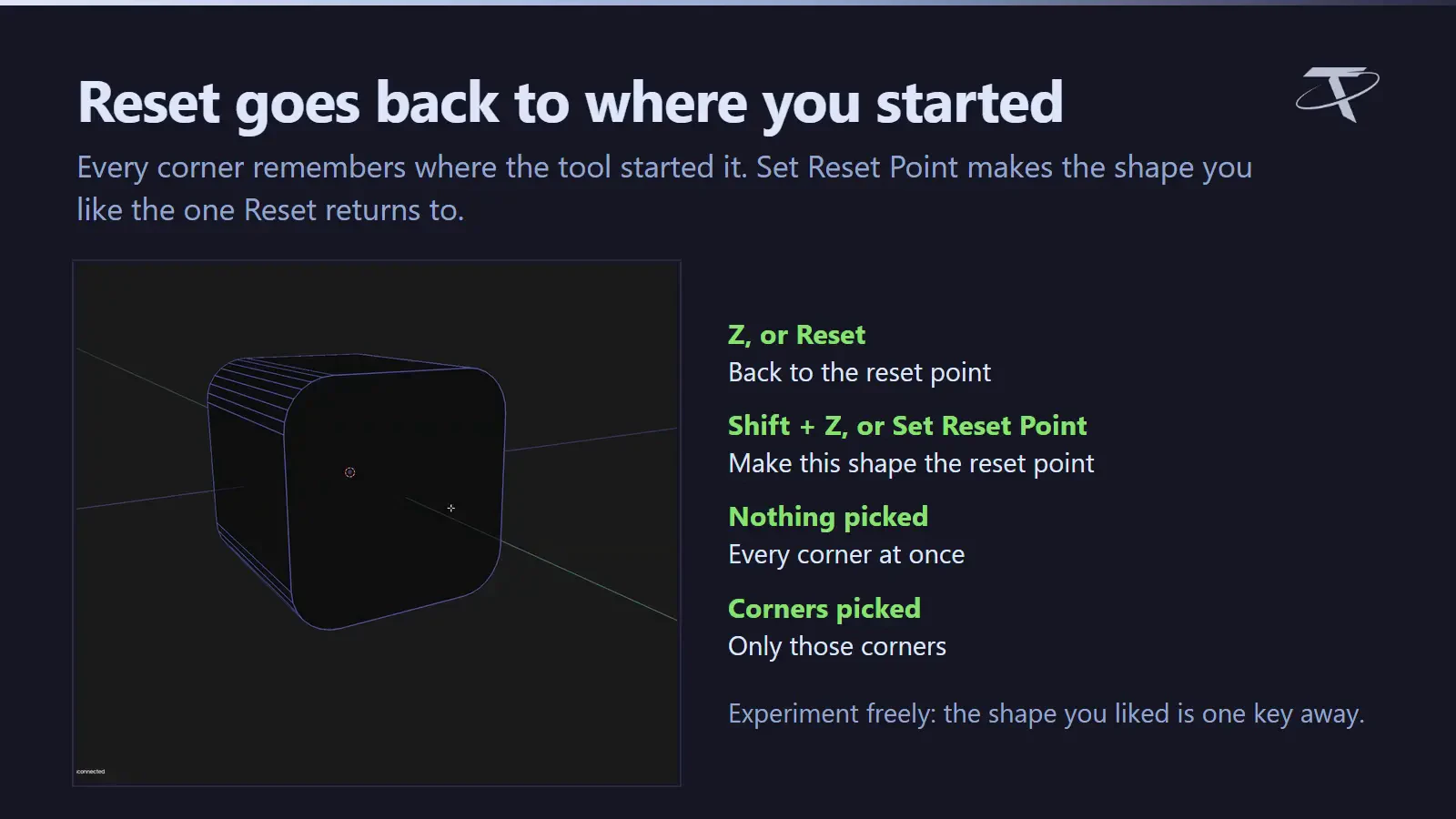
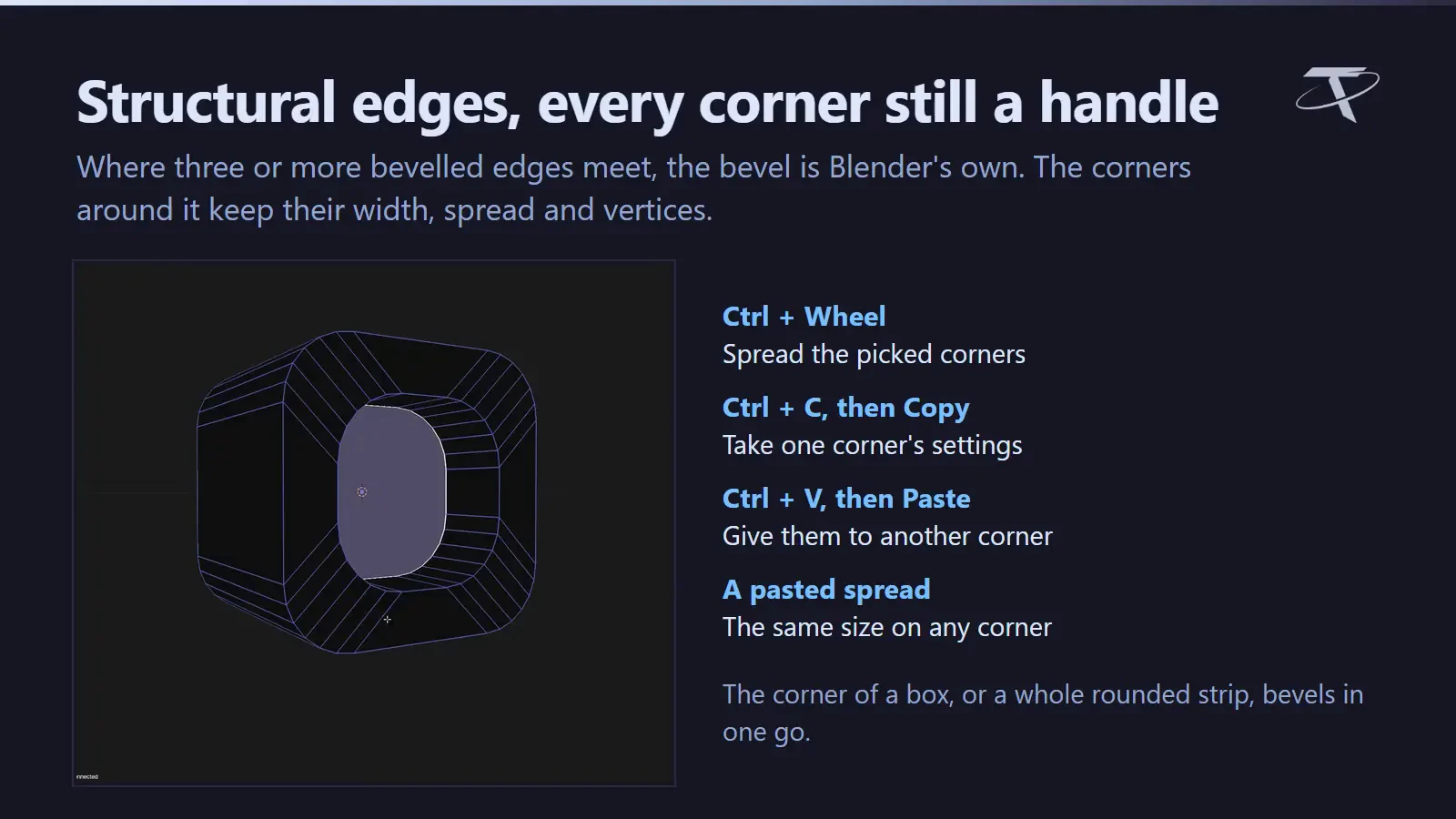
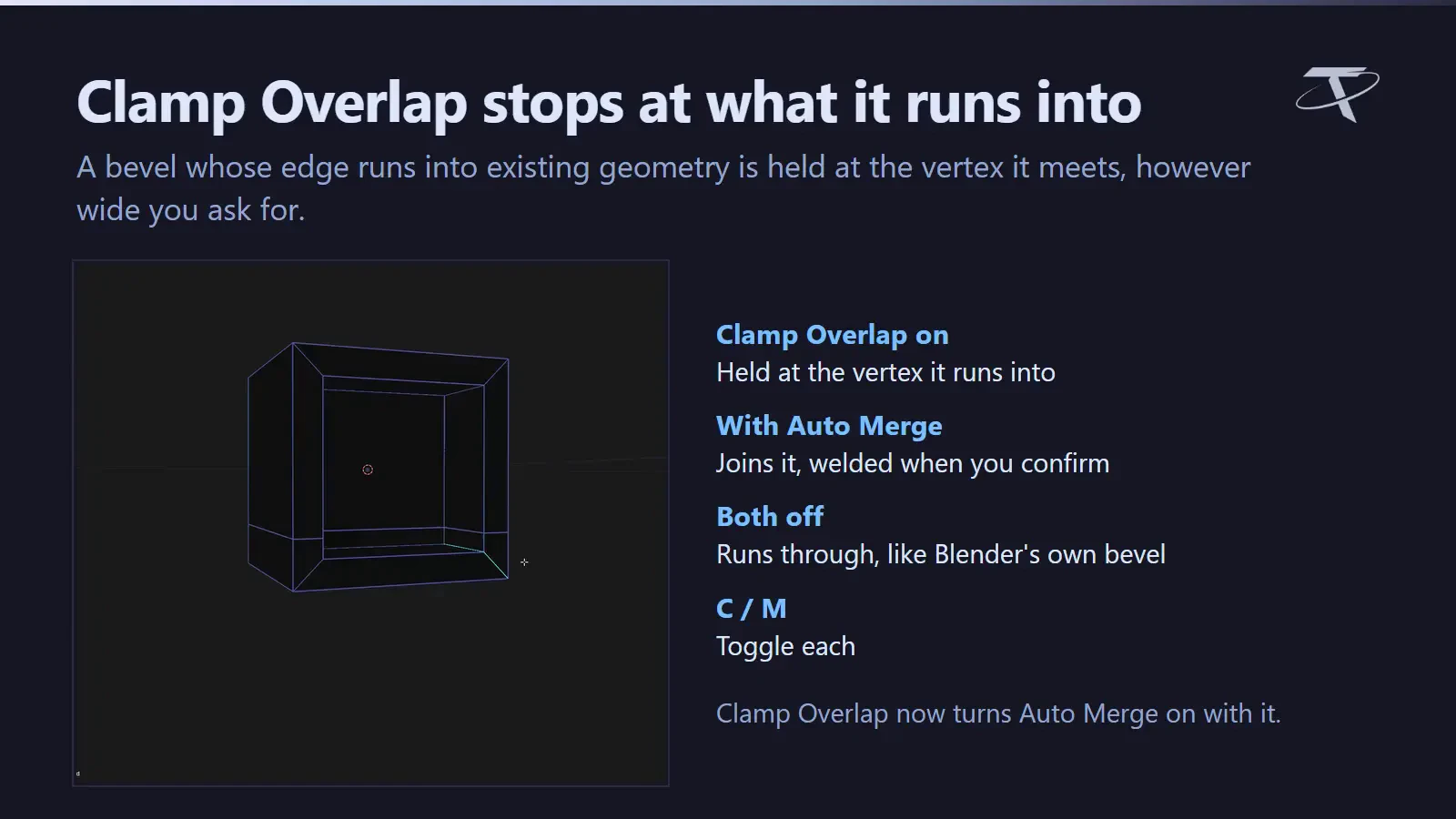
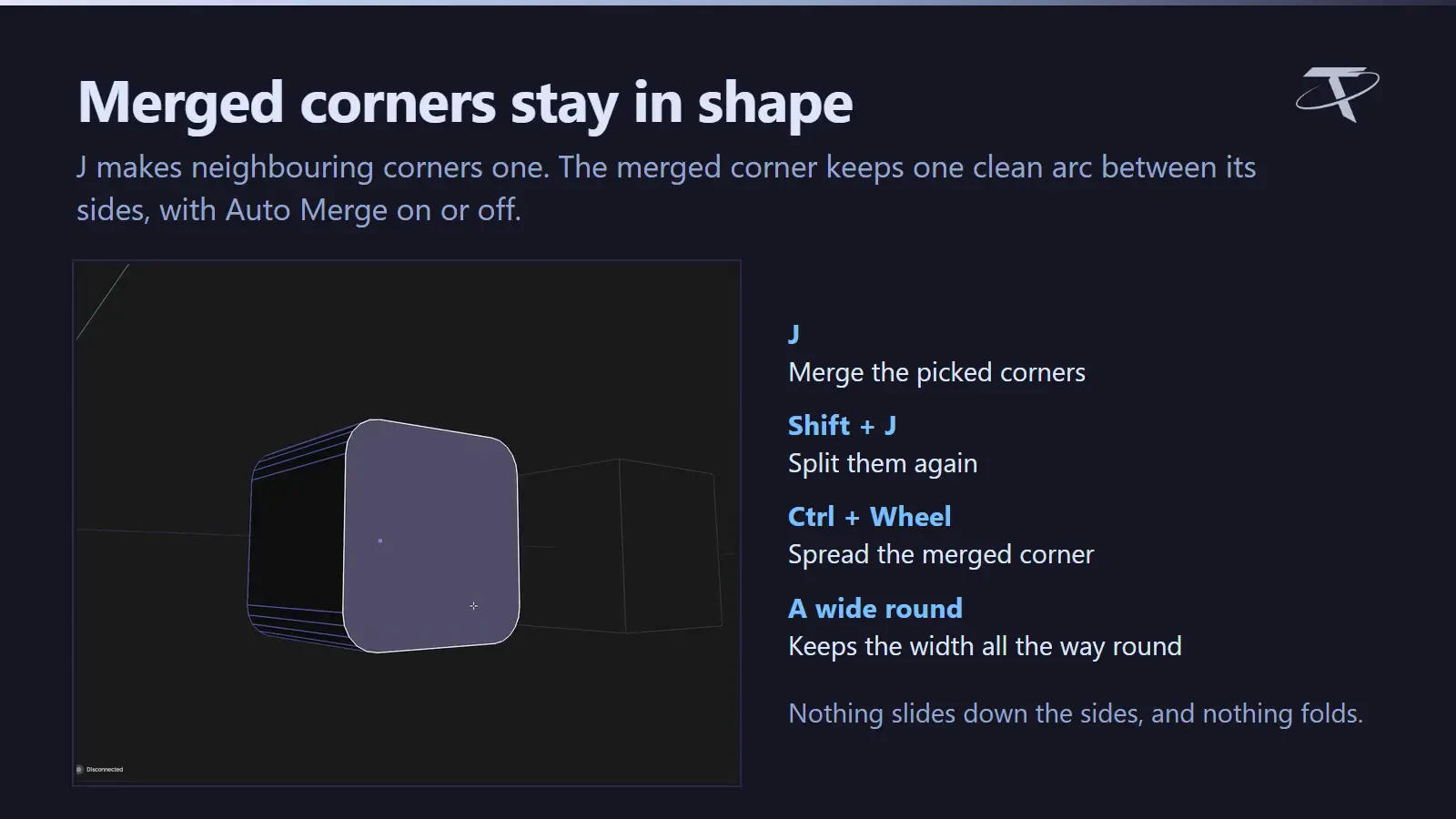
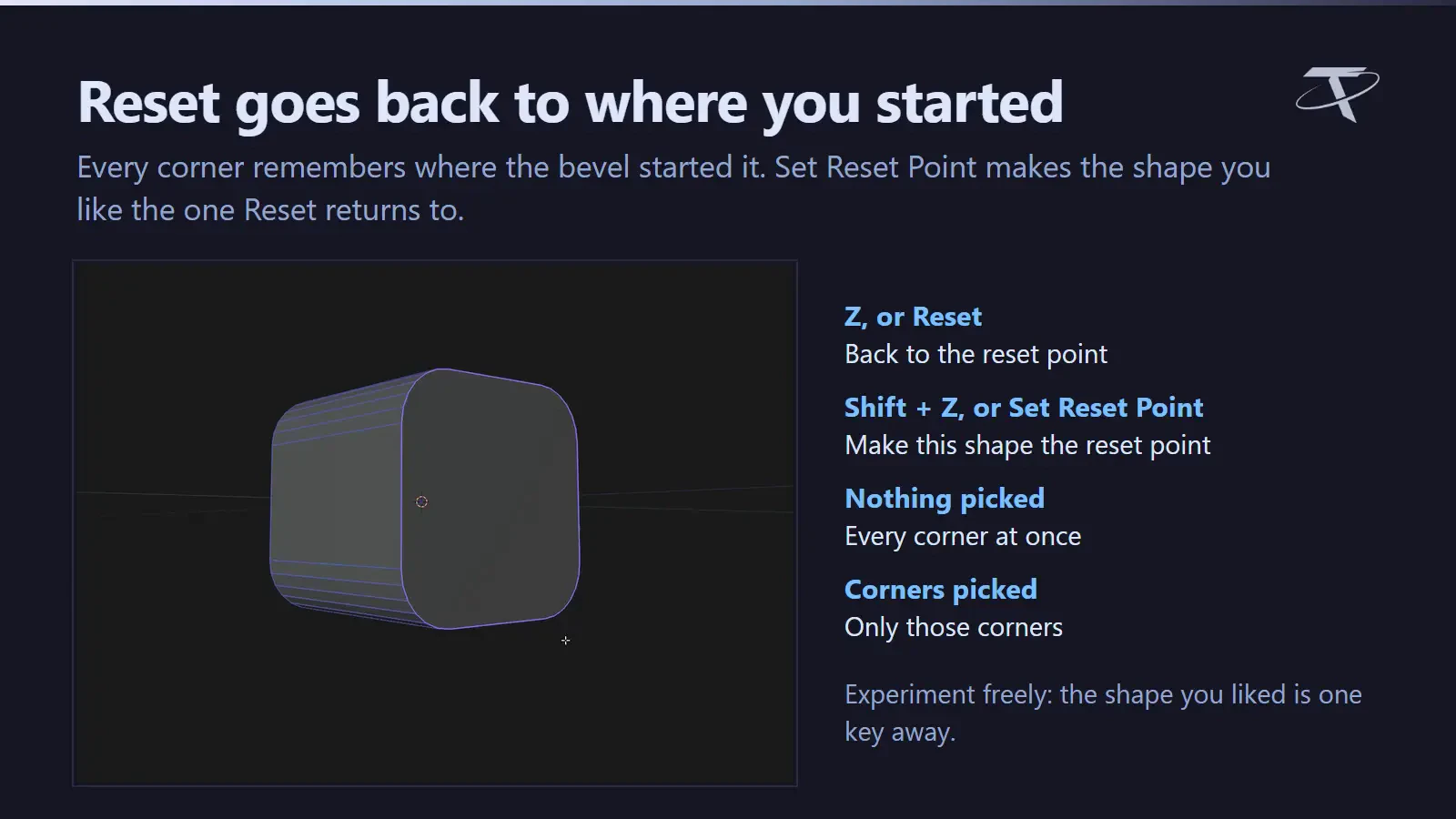
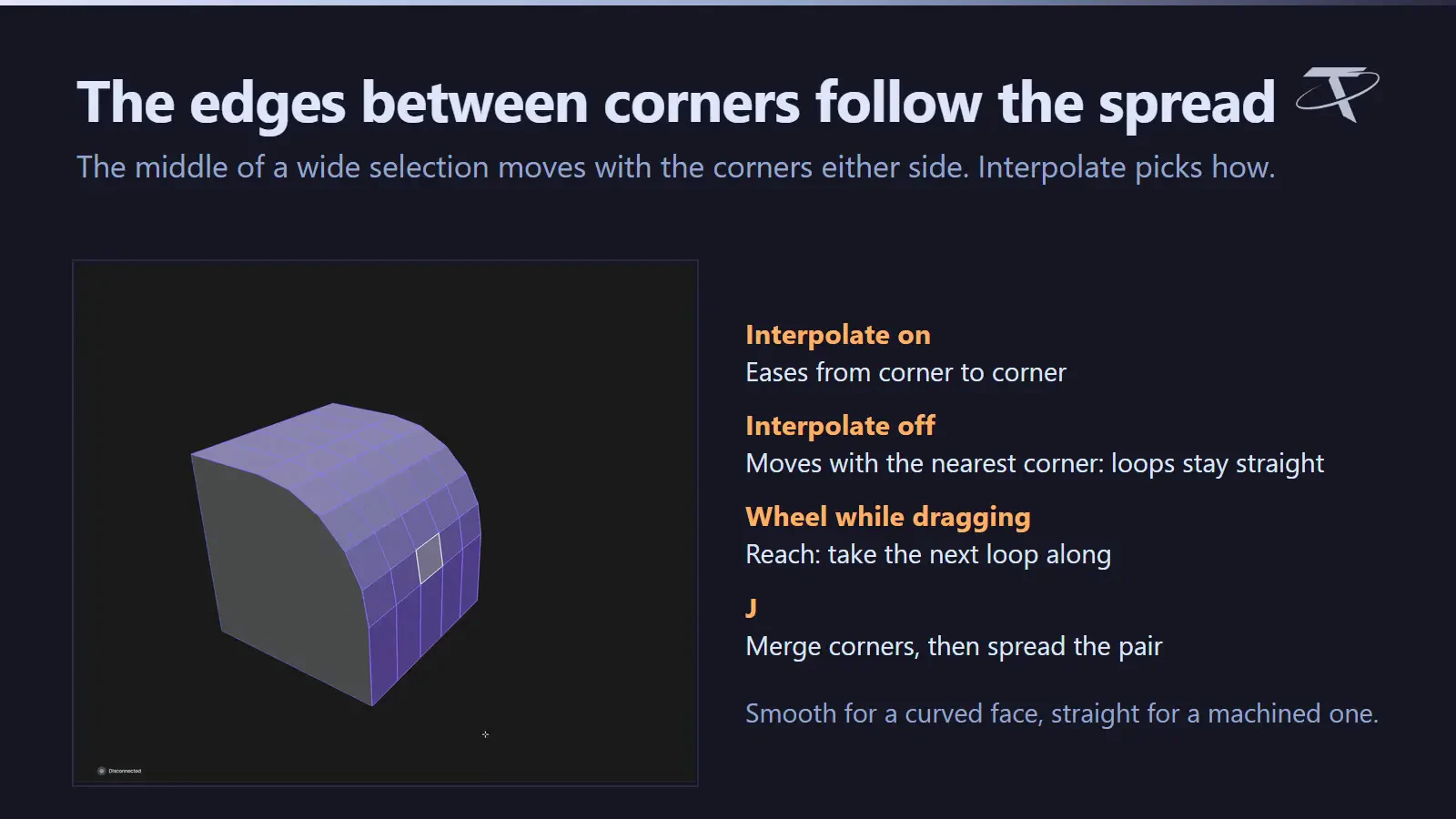
The same editor in all three: click once and every corner is a handle. Shift + Wheel for depth, Ctrl + Wheel for spread, Alt + Wheel for vertices; merge, split, copy and paste corners; Esc puts the mesh back exactly. Blender's own Inset, Bevel and Extrude stay untouched on their usual keys.
Check your setup
Windows, macOS or Linux · Blender 3.3–5.2. Pure Blender: no external apps, no network use, nothing to configure. Each add-on is one package — an extension on 4.2+, a classic add-on on 3.3–4.1. On 3.3, changing a corner's vertex count and Auto Merge are declined.
Build out your workflow.
More by Tachyon Studio


Optional products, sold separately.
See all on Superhive